
How to use budget alerts
Reasks retry the upstream model. Playbooks can fan out into several concurrent calls. Put a misconfigured agent in front of unexpected traffic and a modest monthly LLM bill can turn into a nasty surprise, usually discovered in the billing dashboard well after the spend already happened. Budget alerts flip that around: a per-agent USD cap, notifications before you hit it, and on Growth+ plans, optional degrade modes so over-budget traffic keeps running on a cheaper path instead of stopping cold.
This tutorial walks through setting a monthly budget on an agent, picking what happens once that budget is exceeded (block, fallback_agent, or cheaper_model), understanding how playbook budget routes take precedence, setting alert thresholds so you find out at 80% instead of 100%, and reading the Spent on blocked metric correctly (it's upstream dollars already paid on requests that got blocked anyway, not money you saved). By the end, you'll know:
- How ValGuard estimates cost per request, and what counts toward an agent's budget
- How to set a monthly USD budget and what
blockvs degrade modes do when it's exceeded - How Free plans stay on hard
block(402), while Growth+ unlocks fallback and cheaper-model paths - Precedence: playbook budget route → agent policy → HTTP 402
- How to configure email alerts before you actually hit the cap
- How budgets interact with token limits, and which one takes precedence
- How to read Spent on blocked /
blocked_upstream_usd(and why it is not “cost saved”)
1How It Works
Every request through the gateway carries an estimated cost, computed from prompt and completion token counts (
EstimateRequestCostMicro/EstimateRequestCostMicroForModel, stored ascost_micro_usdon the request record). When a curated row exists inmodel_pricesfor that provider and model, the estimate uses those prices; otherwise it falls back to a token heuristic. Either way, the dashboard cost badge is still labeled estimated. It's a guardrail number, not your provider's invoice.That estimate accumulates against the agent's
monthly_budget_usdover the current billing period. Reasks count as additional requests with their own cost, and orchestration steps each reserve against their own agent's budget independently, not the playbook as a whole.When an agent's accumulated estimated spend for the period would exceed its budget, what happens next depends on budget exceeded mode (
budget_exceeded_mode) and whether a playbook already handled the situation:Mode Behavior block(default)HTTP 402 with agent_budget_exceeded, returned before the upstream LLM call, so the blocked request never actually incurs the costfallback_agent(Growth+)Continue via another assistant in the same workspace ( budget_fallback_agent_id)cheaper_model(Growth+)Continue on an allowlisted cheaper model ( budget_cheaper_models)A budget of
0disables the USD cap entirely. Free plans are locked toblockonly; the Growth+ analytics entitlement is what unlocks the degrade modes in agent settings.Precedence (locked):
- Playbook budget route. If the graph has a matching
on_budget_exceededorbudget_remaining_belowedge, that edge wins. HTTP 402 is not forced here; the run can still complete as degraded or ok. - Agent policy.
budget_exceeded_modeapplies when no matching graph budget edge was taken. - Hard 402. Only kicks in when the policy is
block(the default) and no budget degrade edge fired.
Budgets are a soft, estimated cap, not a real-time metered billing integration with your LLM provider. They're accurate enough to use as a guardrail, but your provider's billing dashboard is still the source of truth for actual spend.
A related but separate mechanic worth distinguishing:
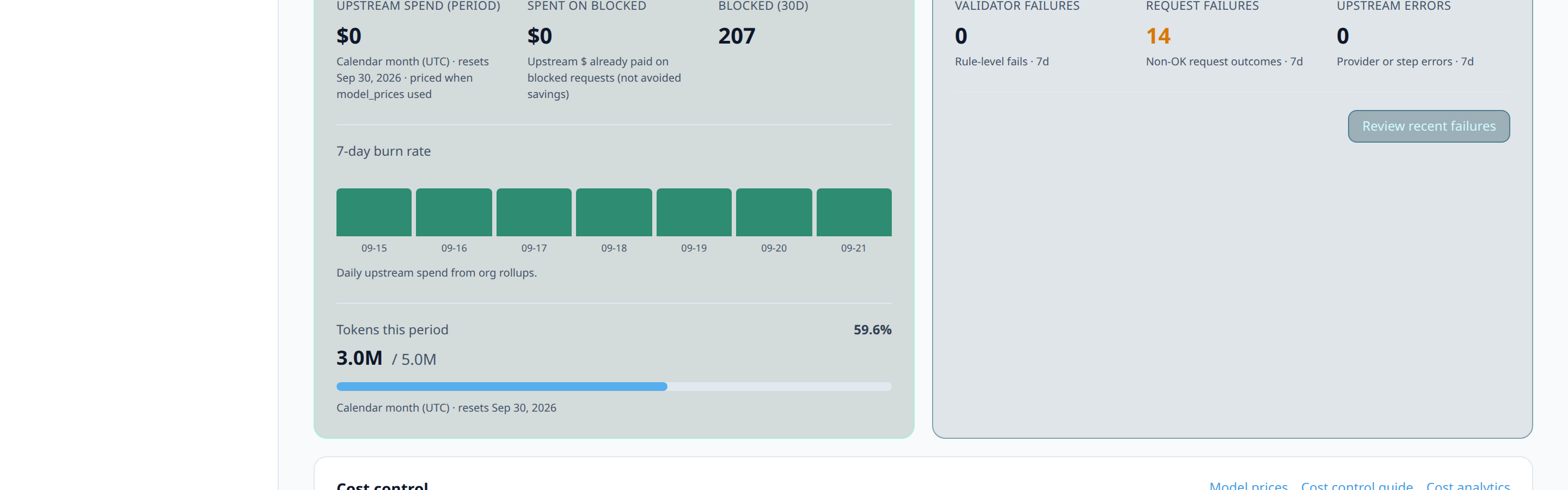
blocked_cost_micro_totaltracks upstream spend already recorded on requests that validation blocked afterward (a post-call output block still paid for the LLM call). The dashboard surfaces this as Spent on blocked /blocked_upstream_usd. That money is already counted in your upstream spend; it is not savings you avoided. Real pre-call avoided cost needs a client-owned rule, and you can't derive it from this counter alone.- Playbook budget route. If the graph has a matching
2Prerequisites
- An agent with real (or realistically estimated) traffic volume in mind, so a budget number is meaningful rather than arbitrary
- Access to Dashboard → Agents → [agent] → Settings
- A sense of your acceptable monthly spend per agent (even a rough number beats no cap at all)
- Growth+ (analytics entitlement) if you want
fallback_agentorcheaper_modelinstead of hard block
3Step-by-Step Setup
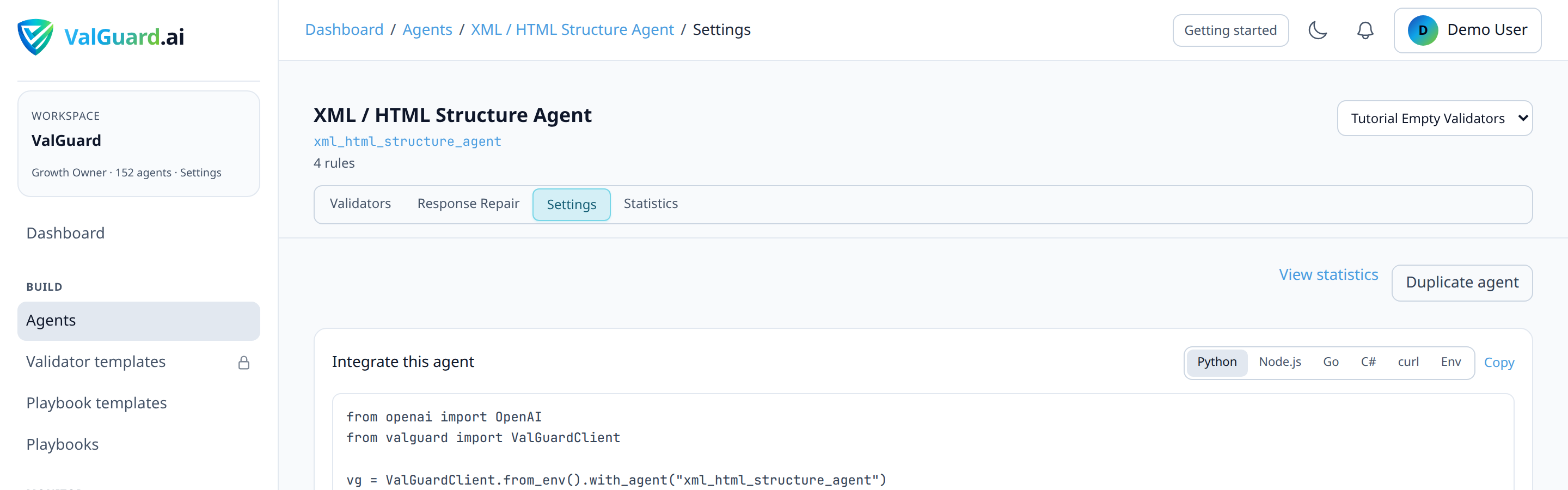
Step 1: Open the target agent's settings
Go to Dashboard → Agents, select the agent, and open Settings.
Step 2: Estimate a reasonable budget
Look at recent request volume and average cost per request (visible in Dashboard → Token usage, Analytics, or the Cost hub spend-by-agent strip) to set an informed number, rather than guessing. A common starting point is your trailing 30-day actual spend plus a reasonable growth margin.
Step 3: Set the monthly USD budget
Enter the value in the Monthly budget (USD) field. Leave it at
0to disable the cap (not recommended for production agents with real cost exposure).
Step 4: Choose what happens when the budget is exceeded
Under When budget is exceeded:
- Hard block (402). Default on every plan. Safest choice for agents where continuing on a cheaper path would be the wrong call.
- Use a fallback assistant (Growth+). Pick another agent in the same workspace. Useful when a cheaper specialist can absorb overflow traffic.
- Switch to a cheaper allowlisted model (Growth+). Enter one
provider/modelper line. With the engine env flagCOST_AUTO_CHEAPER_MODELoff (the default), the first allowlisted model is used. Turn the flag on and the engine ranks the allowlist using curatedmodel_priceswhen known.
On Free, the control stays locked to hard block; upgrade if you need degrade modes. Playbook budget routes still win over this agent setting when present (see the cost-control tutorial for phrase presets).

Step 5: Save the agent settings
Confirm the save succeeded. The cap and mode take effect immediately for new requests once saved.
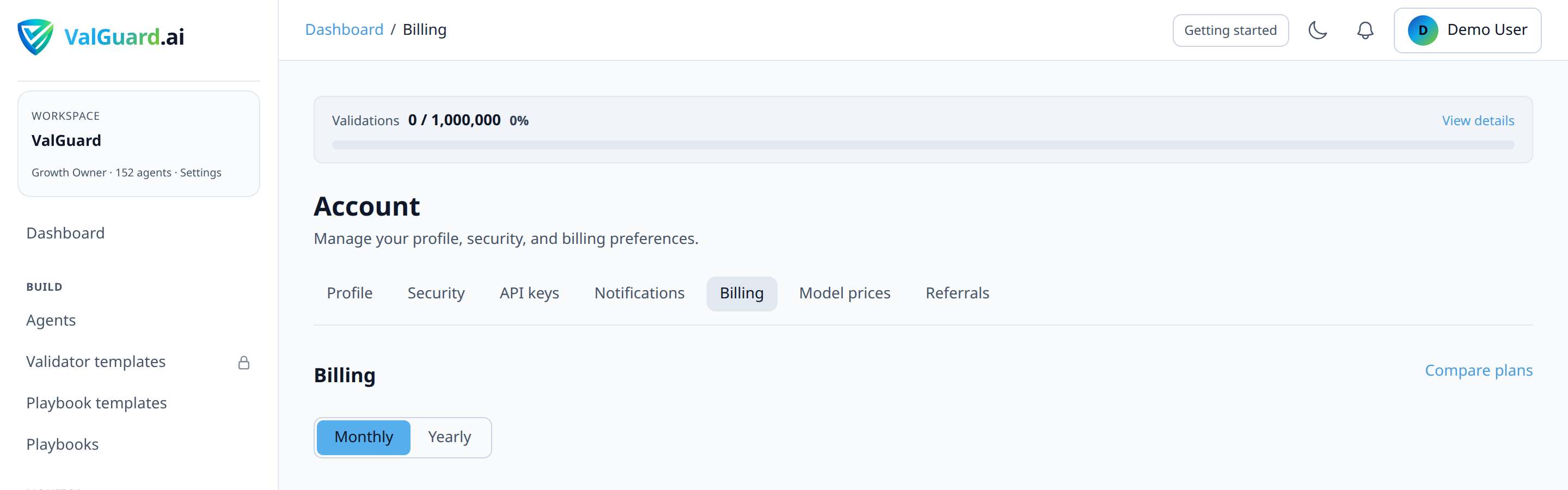
Step 6: Confirm the current billing period
Budgets reset on your organization's billing period boundary. Check Dashboard → Billing & costs to confirm when the current period starts and ends, so the number you're watching lines up with the actual reset schedule.
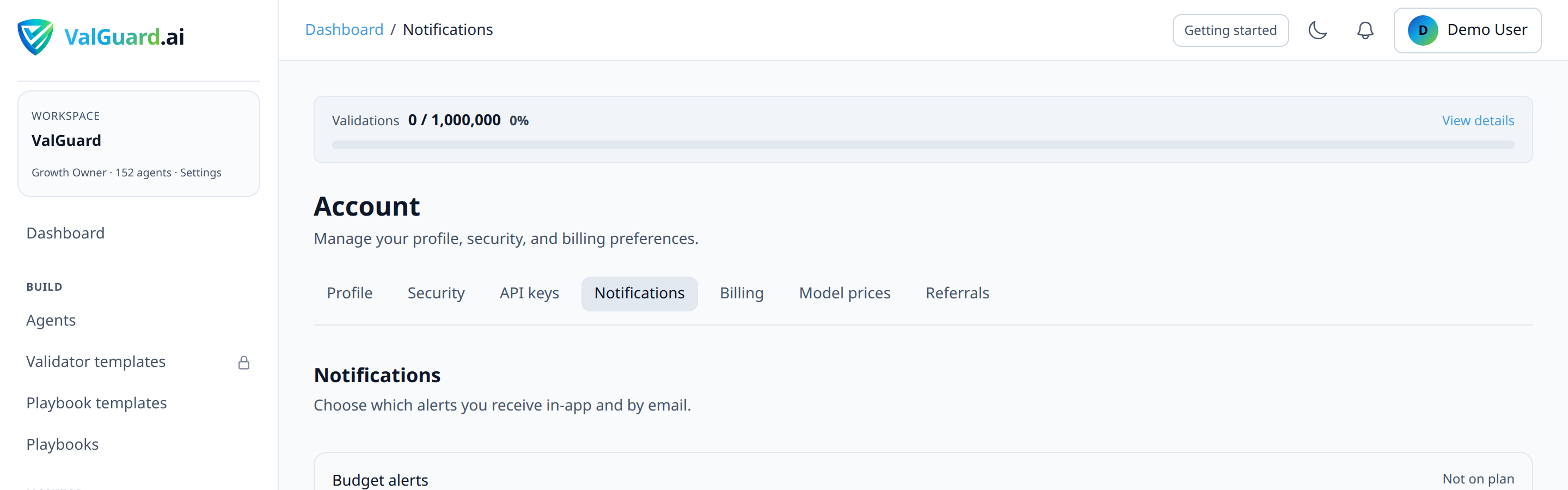
Step 7: Configure alert thresholds
Go to Dashboard → Billing & costs → Notifications and enable budget alerts. Alerts typically fire at meaningful thresholds (commonly 80% and 100% of the cap) rather than only once you've already hit the limit.
Step 8: Test the alert path (optional, for critical agents)
If you want to confirm the alert pipeline actually works before relying on it, temporarily set a very low budget on a test agent, send enough traffic to cross the 80% threshold, and confirm the notification arrives. Separately, with mode=
block, confirm a request is blocked withagent_budget_exceeded; with a degrade mode, confirm traffic continues on the fallback path and request/orch detail shows the budget policy was applied.Step 9: Monitor usage as it accrues
Check the agent's overview card, Dashboard → Analytics, or the Cost hub periodically. Don't rely solely on the 80%/100% alerts for agents where hitting the cap unexpectedly would be disruptive; proactive monitoring catches trends before thresholds do.
Step 10: Respond to a budget_exceeded event
If an agent hits its cap, you have options: raise the budget (if the spend is legitimate), investigate why spend spiked (misconfigured reask loop, traffic surge, runaway fan-out), switch to a Growth+ degrade mode or a playbook budget route if a hard stop is worse than a cheaper path, or leave it capped until the period resets while you investigate.
Step 11: Set budgets on your highest-traffic agents first
If you manage many agents, start with the ones that have the highest request volume or run the most expensive models. That's where an unexpected cost spike does the most damage, and where a budget cap gives you the most protection per minute spent configuring it.
4Diagram / Flow
5Configuration Examples
Agent settings payload (hard block, default):
{ "slug": "invoice-extraction", "monthly_budget_usd": 500.00, "budget_exceeded_mode": "block" } ``` **Growth+ degrade via fallback assistant:** ```json { "slug": "invoice-extraction", "monthly_budget_usd": 500.00, "budget_exceeded_mode": "fallback_agent", "budget_fallback_agent_id": "aaaaaaaa-bbbb-cccc-dddd-eeeeeeeeeeee" } ``` **Growth+ degrade via cheaper model allowlist:** ```json { "slug": "invoice-extraction", "monthly_budget_usd": 500.00, "budget_exceeded_mode": "cheaper_model", "budget_cheaper_models": ["openai/gpt-4o-mini", "openai/gpt-4.1-nano"] } ``` **Blocked response when mode is `block` and budget is exceeded:** ``` HTTP/1.1 402 Payment Required Content-Type: application/json { "error": { "code": "agent_budget_exceeded", "message": "agent monthly budget exceeded", "type": "invalid_request_error" } } ``` **Example curl call to a budget-capped agent:** ```bash curl -si "$VG_PROXY/v1/chat/completions" \ -H "Authorization: Bearer $VG_API_KEY" \ -H "X-VG-Agent: invoice-extraction" \ -H "Content-Type: application/json" \ -d '{"model":"openai/gpt-4o","messages":[{"role":"user","content":"..."}]}'6Testing and Verification
- Confirm the setting saved. Reload the agent settings page after saving and confirm the budget value and exceeded mode persisted.
- Low-budget smoke test (
block). On a non-production test agent, set an intentionally tiny budget (e.g., $0.01) with modeblockand confirm a request is correctly blocked withagent_budget_exceeded. - Degrade smoke test (Growth+). Switch to
fallback_agentorcheaper_model, repeat the low-budget test, and confirm the request continues (and request/orch detail reflectsbudget_policy_appliedrather than a hard 402). - Graph precedence check. In a playbook with an
on_budget_exceededroute, confirm that edge is taken even when the agent's mode isblock. The graph wins. - Alert delivery check. Confirm the 80%/100% notification actually arrives at the configured destination (email or webhook, depending on your notification setup) rather than assuming it's configured correctly.
7Troubleshooting
"My agent got blocked, and I don't understand why. I thought I had budget left." Check whether reasks or orchestration steps are consuming budget faster than you accounted for. Each reask attempt and each playbook step using this agent counts as its own request against the same monthly budget.
"I raised the budget but requests are still blocked." Confirm you actually saved the updated agent settings. An unsaved change in the dashboard form reverts on reload, and cap enforcement uses the last saved value.
"I set fallback_agent / cheaper_model but still get 402." Confirm you're on Growth+ (Free is locked to
block), that the fallback assistant ID is set and isn't the same agent, and that the cheaper-model allowlist isn't empty. Also check whether a playbook budget route is absent and the policy failed closed on a misconfiguration: an empty allowlist or unset fallback falls back to deny (402)."My playbook continued instead of returning 402 even though the agent mode is block." That's expected when the graph has a matching
on_budget_exceeded/budget_remaining_belowroute. Graph budget routes take precedence over agent policy and hard 402."The cost estimate doesn't match my provider's actual invoice." That's expected within a reasonable margin. ValGuard's estimate uses curated
model_priceswhen known, otherwise a token heuristic. Treat your provider's invoice as the source of truth for exact spend, and ValGuard's budget as a guardrail, not a bill."I want a budget that resets weekly, not monthly." Budgets are monthly, aligned to your organization's billing period. There's no native weekly reset. If you need finer control, monitor spend more frequently via the Cost hub instead of relying on the cap's reset cadence alone.
"A budget_exceeded event happened but I got no alert." Check Dashboard → Billing & costs → Notifications to confirm budget alerts are actually enabled, and that the destination (email address, or webhook if configured) is correct and reachable.
8Best Practices
- Set a budget on every production agent with real cost exposure, even a generous one. A cap that's rarely close to being hit still protects against genuine runaway scenarios (a misbehaving reask loop, an unexpected traffic spike), at negligible cost to normal operation.
- Keep
blockas the default until you have an explicit overflow path you're willing to serve. Degrade modes trade cost for answer quality. - Base the number on real data, not a guess. Check Cost hub spend-by-agent and recent average cost per request before picking a figure.
- Enable alerts at both 80% and 100%, not just 100%. The 80% alert is your chance to investigate and adjust before service is actually disrupted.
- Prefer playbook budget routes for multi-step workflows when overflow should follow a designed cheaper path; use agent policy for single-agent chat where there is no graph.
- Revisit budgets periodically as traffic grows. A budget set for last quarter's volume can become a growth-limiting false alarm if usage has genuinely and legitimately increased.
- Pair budget alerts with monthly token limits (see that tutorial). They're separate mechanisms tracking different things (USD estimate vs. raw token count), and they catch different failure modes.
9Advanced Options
Correlating budget spend with blocked upstream spend. The
blocked_cost_micro_total/ Spent on blocked figure shows dollars already paid on requests that were still blocked by validators. It's useful for explaining residual waste after a validation rollout, in the same units your budget cap protects. It is not an “avoided” or “cost saved” estimate.Budget-aware model routing. For cost-sensitive agents, pairing a budget cap with a cheap-first, validation-gated fallback pattern (see the smart LLM fallback router pattern and the Cost hub one-click install CTA) reduces how often you approach the cap in the first place, rather than relying on the cap alone as your only cost control.
Runtime cheapest-model auto-pick. Self-hosted / ops: set engine env
COST_AUTO_CHEAPER_MODEL=1socheaper_modelmode ranks the allowlist by curated prices. Leave it off (default) to always use the first allowlisted entry. Never leave the allowlist empty, and never put models outside the allowlist in the ranking.Overage handling. Paid plans with an active subscription can opt into metered overage billing instead of a hard block once a monthly validation cap is reached (
X-VG-Overage: true). Enable it on Dashboard → Billing & costs; Free is hard-capped. This is separate from USDbudget_exceeded_mode.10Summary and Next Steps
A budget alert is a simple, high-leverage guardrail: a per-agent USD cap that, by default, blocks further spend before it happens, with notifications well before you hit it. Growth+ adds optional degrade modes; playbook budget routes sit above both. Setting it up is a few minutes of configuration; the value comes from basing the number on real usage data and treating the 80% alert as an investigation trigger, not just noise to dismiss.
From here, using Cost control covers the Cost hub recommendations, spend-by-agent strip, budget-aware playbook phrases, and model-price estimates; setting monthly token limits covers the complementary token-count-based cap; and monitoring your flows covers the broader dashboard views where you'll notice a spend trend before it becomes a budget alert.