
How to use Cost control
Budgets and token caps stop runaway spend. Cost control is the broader operator surface: see where money is going, act on recommendations, branch playbooks when budget is low, and understand how estimated costs relate to curated and org model prices, without inventing a fake “cost saved” number.
This tutorial walks the Cost hub and the steering surfaces that sit beside per-agent budgets. By the end, you'll know:
- Where Cost hub recommendations come from and how to act on each card
- How the cost badge, spend-by-agent strip, and Smart LLM Fallback deep-link work
- How to use budget-aware playbook phrases (
If less than 20% budget left,If this agent is over budget) - How Billing & costs → Model prices org
$/1Moverrides improve estimates (and when the badge says priced vs estimated) - How to soak exact response cache (
COST_RESPONSE_CACHE+ agent Exact response cache) - That runtime cheapest-model auto-pick is opt-in via
COST_AUTO_CHEAPER_MODEL(off by default)
1How It Works
ValGuard cost control has three operator surfaces, in the order most teams use them:
- Cost hub (dashboard overview): month-to-date spend, Spent on blocked, top spend by agent, and up to three recommendation cards with one CTA each.
- Playbook builder: plain-language budget phrases that route a step when budget is low or already exceeded.
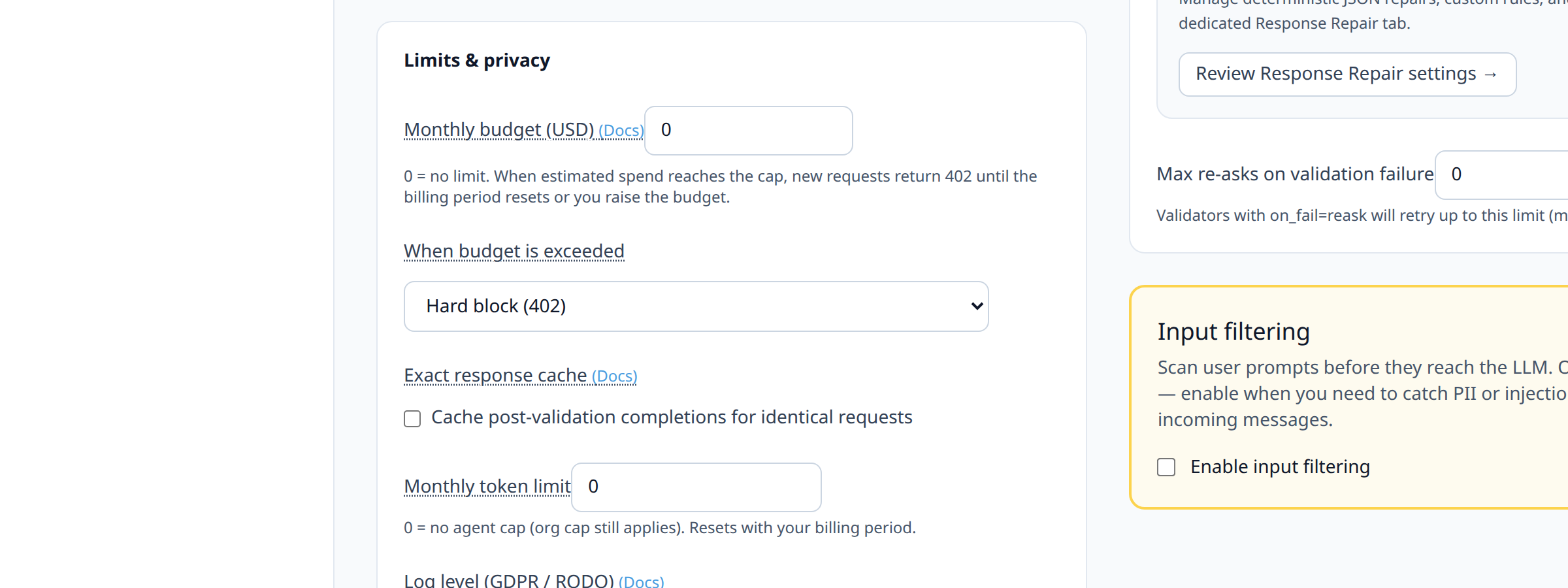
- Agent settings: monthly USD budget plus exceeded mode (
block|fallback_agent|cheaper_model), covered in depth in the budget-alerts tutorial.
Spend and recommendations are observability + steering, not a second billing system.
cost_micro_usdis an estimated upstream cost.blocked_upstream_usd/ Spent on blocked is money already paid on requests that validation later blocked. It is not avoided savings. Prefer those existing fields; do not invent a pre-call “cost avoided” formula.Estimate quality (Phase 4 + org overrides). The engine prefers org
$/1Mrates from Billing & costs → Model prices when set, then curatedmodel_pricesrows, otherwise a token heuristic. Request detail and orch step timelines show priced when a catalog or org rate was used, or estimated for the heuristic path. Neither label is a live provider quote.Exact response cache (Phase 2). With engine env
COST_RESPONSE_CACHE=1and the agent Exact response cache toggle on (Limits & privacy), repeatable post-validation completions can skip upstream spend. Fail-open; semantic similarity is not enabled. Use this pair for ops soak before chasing further cache depth.Runtime cheaper-model auto-pick (Phase 5). When an agent's mode is
cheaper_model, the engine picks frombudget_cheaper_models. With envCOST_AUTO_CHEAPER_MODEL=1, it ranks that allowlist by estimated cost using org/curated prices when known. With the flag off (default), it uses the first allowlisted model. The flag never expands beyond the allowlist. Leave it off until you have soaked allowlist ranking in staging.2Prerequisites
- A workspace with some real (or demo) request volume so Cost hub cards are meaningful
- Access to Dashboard overview (Cost hub) and Dashboard → Playbooks (or Playbook templates) for budget phrases and template install
- Familiarity with setting a monthly USD budget (see the budget-alerts tutorial)
- Growth+ if you intend to use agent degrade modes; playbook budget routes and Cost hub visibility are the primary Free-path levers alongside hard
block
3Step-by-Step Setup
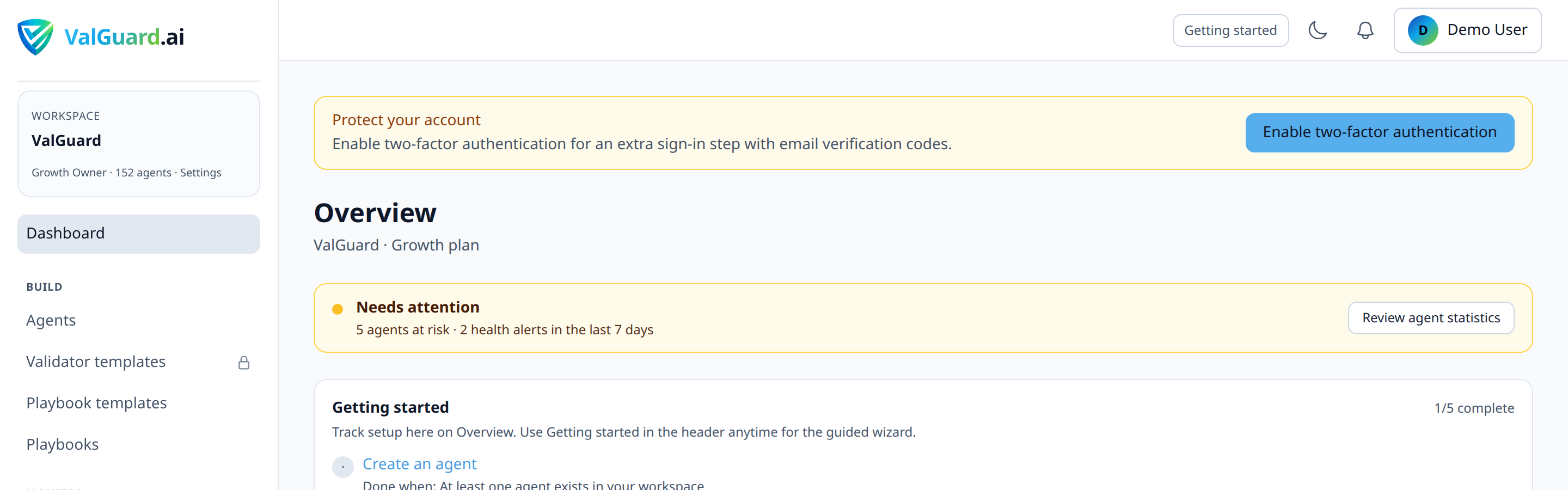
Step 1: Open the Cost hub
On the main Dashboard overview, find the Cost control section under the cost / observability hub. Note month-to-date upstream spend and Spent on blocked (the latter is residual waste after validation blocks, not savings).

Step 2: Read top spend by agent
When agents have MTD spend, a Top spend by agent strip appears. Each chip links to Cost analytics filtered to that agent. Use it to decide which agents need a budget first, or which already warrant a cheaper default model / fallback playbook.

Step 3: Act on recommendation cards (0–3)
Recommendations are org-scoped, session-authenticated, and lightly cached. Priority is roughly: over budget → nearing budget (≥80%) → set a budget on a high spender → install Smart LLM Fallback → top spender drill-down. Each card has one problem, one why, and one CTA.
Empty state means you're within budget and have no urgent action. Keep watching Tokens & Analytics.

Step 4: Install Smart LLM Fallback from the hub (optional)
If the workspace has meaningful spend and the
smart-llm-fallback-routercatalog template is not installed, the hub may show a one-click Install Smart LLM Fallback CTA. It deep-links to:/dashboard/orchestration?applyTemplate=smart-llm-fallback-routerThat playbook tries a cheaper model first and escalates to premium only when validation fails, complementary to budget caps, not a replacement.
Step 5: Confirm cost badges on request detail
Open Dashboard → Request logs → [id] for a recent completion. Where
cost_micro_usdexists, the cost badge appears on the request and on orchestration step timelines, labeled priced when org or curated model rates were used, otherwise estimated. Use it to sanity-check expensive steps; do not treat it as the provider invoice.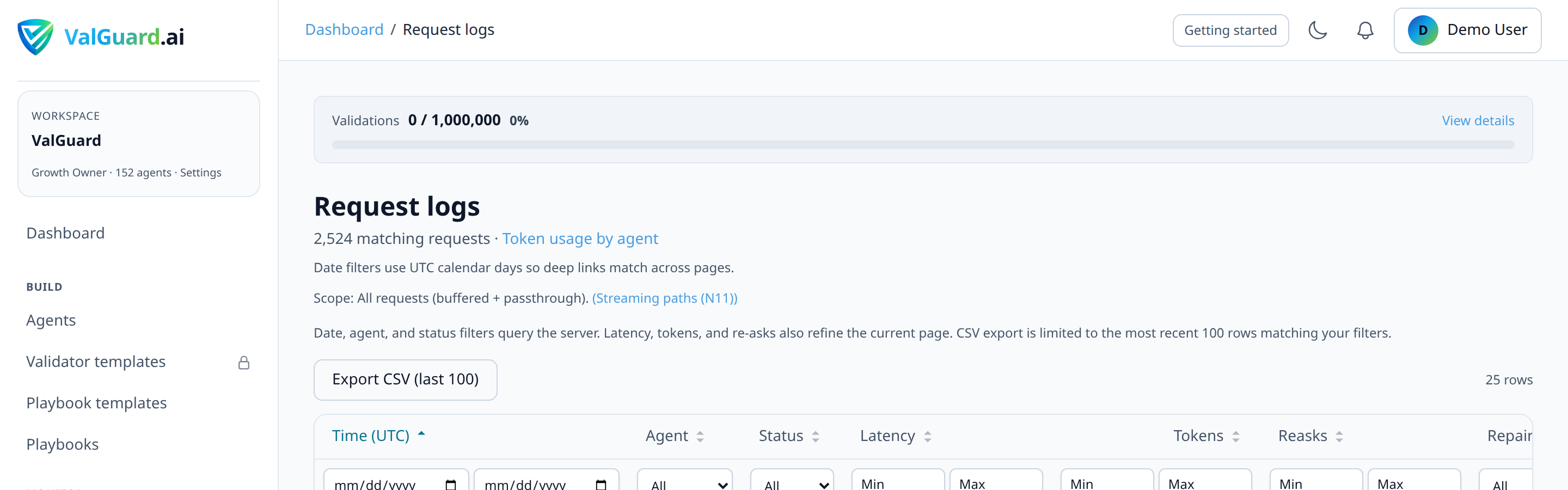
Step 6: Add budget-aware playbook phrases
In the Storyboard or Map editor, add a route with a budget phrase preset:
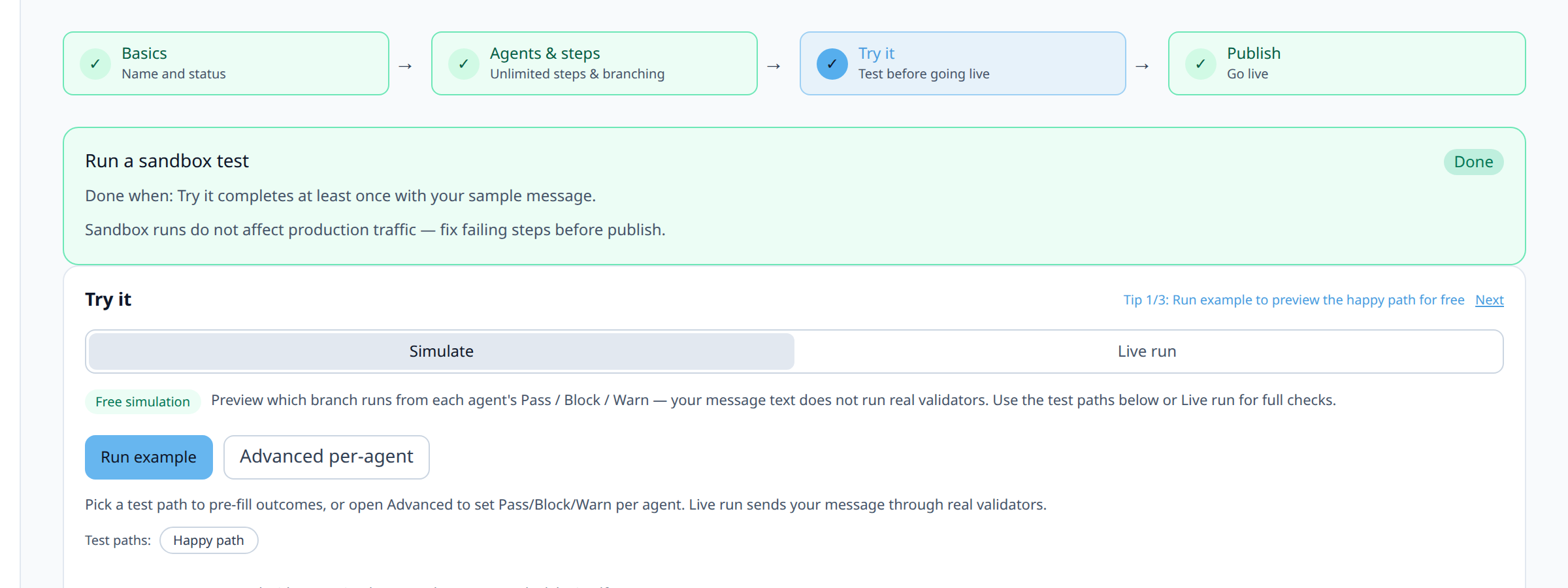
Phrase Condition Typical use If less than 20% budget left budget_remaining_below(default ratio0.2)Route to a cheaper agent/model before you hit the wall If this agent is over budget on_budget_exceededExplicit degrade path when the cap is already crossed You can customize the remaining-budget threshold (ratio or USD) in the phrase builder. Simulate the branch before publishing.
Precedence reminder: a matching graph budget edge is followed instead of forcing HTTP 402, even if the agent's mode is
block. Agent policy applies only when no matching budget edge was taken. See budget-alerts for the full table.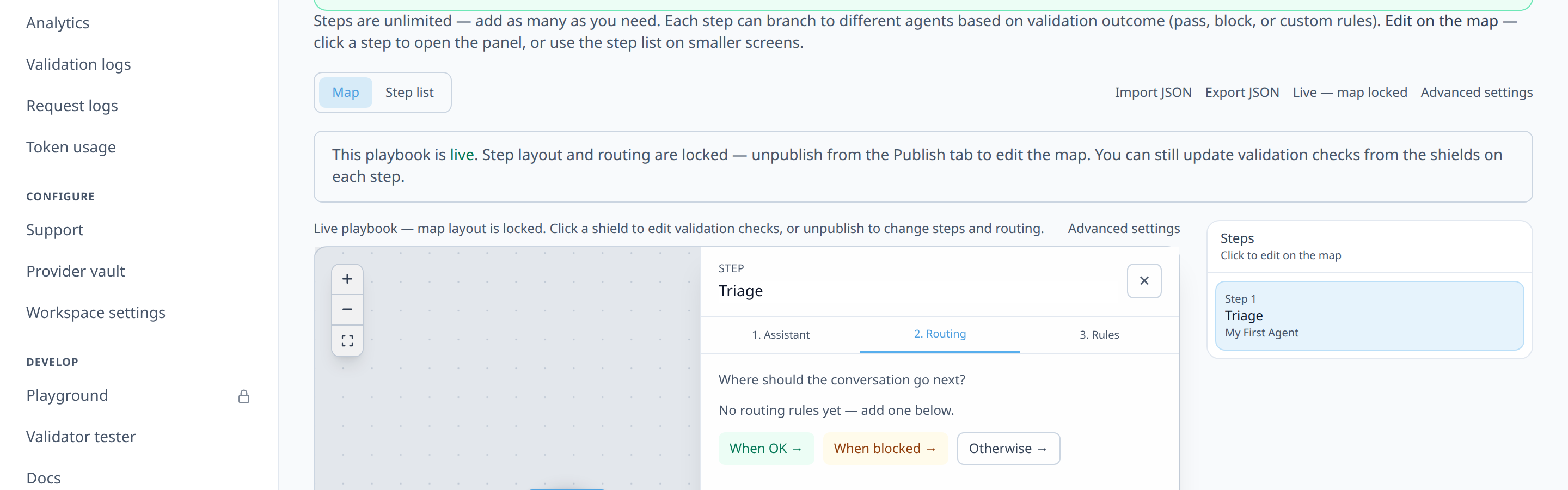
Step 7: Set org model prices (optional but recommended)
Open Dashboard → Billing & costs → Model prices. Enter
$/1Minput and output rates for models your workspace runs. Org overrides beat curated defaults; missing rows fall back to the catalog, then the token heuristic.What matters for badges:
- Org override or curated catalog hit → estimate uses those
$/1Mrates; badge priced. - Unknown / miss → token heuristic; badge estimated; the engine may record a price-lookup miss metric.
- Neither label is a live provider quote or invoice line.
Org-auth catalog endpoint for tooling:
GET /api/providers/model-prices.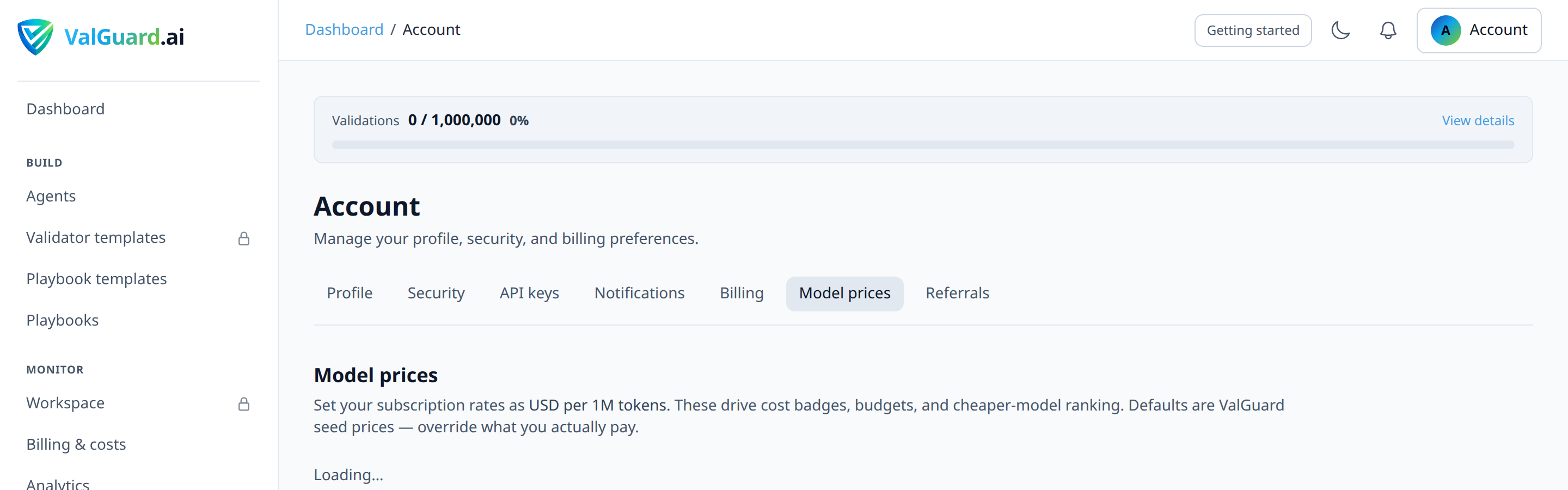
Step 8: Soak exact response cache (ops)
For agents with repeatable prompts (reasks, identical fan-out steps):
- Set engine env
COST_RESPONSE_CACHE=1(master kill-switch; leave unset/0to keep cache off globally). - On the agent, under Limits & privacy, enable Exact response cache (and set TTL if needed).
- Confirm request/orch timelines can show
cache_hiton repeats; watch hit/miss metrics in soak.
Cache stores only post-validation accepted completions and fails open to upstream on errors. Semantic similarity is not part of this path.
Step 9: Leave auto cheaper-model pick off unless you opt in
For agent mode
cheaper_model, leave engine envCOST_AUTO_CHEAPER_MODELunset/0unless you explicitly want allowlist ranking. When enabling:- Confirm
budget_cheaper_modelsis a non-empty allowlist ofprovider/modelstrings. - Confirm org or curated prices exist for models you care about ranking.
- Soak in staging. Auto-pick never leaves the allowlist, but ranking can change which allowlisted model runs first.

Step 10: Pair with budgets and token limits
Cost hub recommendations often CTA into agent settings to set or raise a budget. Complete that loop, then optionally set monthly token limits (separate 402:
token_cap_exceeded) so USD and raw-token guardrails both exist.- Org override or curated catalog hit → estimate uses those
4Diagram / Flow
5Configuration Examples
Deep-link to install the smart fallback template:
/dashboard/orchestration?applyTemplate=smart-llm-fallback-router ``` **Playbook route: low budget remaining (20%):** ```json { "condition_type": "budget_remaining_below", "condition_params": { "ratio": "0.2" }, "to_step_key": "cheap_path" } ``` **Playbook route: already over budget:** ```json { "condition_type": "on_budget_exceeded", "to_step_key": "degraded_path" } ``` **Engine env for exact response cache + optional auto-pick (self-hosted / ops):** ```bash # Exact response cache master switch (agents still opt in via Exact response cache) # COST_RESPONSE_CACHE=1 # Default: off (cheaper_model uses first allowlist entry) # COST_AUTO_CHEAPER_MODEL= # Opt in: rank allowlist by org/curated model prices # COST_AUTO_CHEAPER_MODEL=16Testing and Verification
- Hub loads. Dashboard Cost control section shows either recommendations, an empty within-budget state, or a recoverable error, not a blank panel forever.
- Spend strip. After generating spend on two agents, confirm both appear (or the top-N) with links to analytics.
- Smart-fallback CTA. On a workspace without the template installed and with some MTD spend, confirm the install deep-link opens Apply Template for
smart-llm-fallback-router. - Cost badge. Open a request with token usage and confirm the badge shows a USD figure labeled priced (org/catalog rates) or estimated (heuristic).
- Model prices. After saving an org rate under Billing & costs → Model prices, confirm a matching request badges priced.
- Exact cache soak. With
COST_RESPONSE_CACHE=1and agent Exact response cache on, repeat a validated prompt and confirm acache_hitpath when expected. - Budget phrases. In Simulate, force an over-budget / low-budget scenario and confirm the graph follows the budget edge rather than ending in a hard 402 when that edge exists.
- Auto-pick flag. With
cheaper_modelconfigured, confirm default (flag off) uses the first allowlist entry; with flag on in a non-prod environment, confirm ranking stays inside the allowlist.
7Troubleshooting
"Cost hub shows no recommendations but we are spending money." Empty recommendations can still be correct. Cards only appear for the prioritized signals (over/near budget, uncapped high spenders, missing smart-fallback, top spender). Use the spend-by-agent strip and Analytics for routine visibility.
"I clicked Install Smart LLM Fallback and nothing installed." Confirm you completed the Apply Template wizard after the deep-link opened. The query param only pre-selects the template; publish still requires the normal apply flow.
"Playbook returned 402 even though I added an over-budget route." Confirm the route condition is
on_budget_exceededorbudget_remaining_belowon the step that actually owns the over-budget agent, that the playbook is published, and that Simulate/Live are hitting that step. A mis-attached edge does not count as a graph budget route."Cost badge still says estimated after I set model prices." Confirm the request's provider/model matches an org override or curated row (case/name exact enough for lookup). Heuristic path stays estimated. Org rates under Billing & costs → Model prices win when present; otherwise curated catalog; otherwise heuristic.
"Exact response cache never hits." Confirm engine
COST_RESPONSE_CACHE=1, the agent Exact response cache toggle is on, and you are repeating a post-validation-accepted completion with the same normalized prompt/model/agent config. Cache fails open on errors, so check Redis and metrics."cheaper_model picked the wrong model after I enabled COST_AUTO_CHEAPER_MODEL." Auto-pick only ranks the allowlist; put the models you are willing to run in that list, ensure org/curated prices cover them, or leave the flag off and put your preferred overflow model first.
8Best Practices
- Start at the Cost hub, then drill down. Recommendations and spend-by-agent tell you where to look; request detail and analytics tell you why.
- One primary action per cost moment. Take the card CTA before inventing a parallel process.
- Design playbook degrade paths before you need them. Budget phrases are cheaper to test in Simulate than during a production 402 storm.
- Keep default agent mode at
blockuntil a degrade path is intentional and quality-reviewed. - Treat estimates as guardrails. Provider invoices remain the financial source of truth; fill Billing & costs → Model prices for models you care about labeling priced.
- Soak exact cache with
COST_RESPONSE_CACHE=1+ agent Exact response cache before asking for semantic depth. - Leave
COST_AUTO_CHEAPER_MODELoff until you have soaked allowlist ranking in staging.
9Advanced Options
Metrics for operators with Prometheus access. Useful series include
budget_exceeded_total{surface=chat|orch},budget_degrade_total{mode=...},cheaper_model_pick_total,model_price_lookup_miss,cache_hit_total,cache_miss_total, andupstream_skipped_cost_micro. Instrument names are fixed for the advanced cost-control program.Recommendations API.
GET /api/dashboard/cost-recommendations(session auth,Cache-Control: private, max-age=30) powers the hub; prefer the UI unless you are building internal tooling.Smart fallback vs budget routing. Validation-gated cheap→premium playbooks reduce how often you approach the cap; budget phrases and agent degrade modes handle what happens when you still get close. Use both; don't replace one with the other.
10Summary and Next Steps
Cost control is the FinOps layer around guarded multi-agent traffic: see spend on the hub, act on a short recommendation list, branch playbooks when budget is low, and keep hard block as the safe default until you opt into degrade modes. Set Billing & costs → Model prices for honest priced badges, soak exact response cache with
COST_RESPONSE_CACHE+ agent opt-in, and leaveCOST_AUTO_CHEAPER_MODELoff until you explicitly want allowlist ranking.From here, using budget alerts covers per-agent USD caps and exceeded modes in detail, setting monthly token limits covers the token-count twin, and adding fallback logic pairs naturally with cheap→premium and budget degrade routes.