
How to set up provider vault and BYOK
Every request ValGuard validates eventually needs to reach a real LLM provider: OpenAI, Anthropic, or one of the twenty-plus other backends it supports. That means, somewhere, an API key for that provider has to be available to the gateway. You have two ways to handle this: pass your own provider key on every request, or store it once, securely, in ValGuard's provider vault and let the engine manage it for you.
This tutorial covers both, starting with the simplest possible setup (a per-request key, good for prototyping and for genuinely multi-tenant use cases where each end customer supplies their own key) and building up to the vault-based approach most production teams settle on (store once, rotate centrally, never touch a key in your application code again).
By the end, you'll know:
- The difference between BYOK-per-request and vault-stored provider keys, and when each makes sense
- How to add a provider key to the vault through the dashboard
- How to configure an agent to use a vaulted key versus a per-request key
- How to set up a custom provider endpoint if you're running a self-hosted or enterprise model deployment
- How to rotate a key safely without downtime, and what to check if requests suddenly start failing after a rotation
1How It Works
ValGuard needs a valid credential for whichever upstream provider an agent is configured to call. There are two supported paths for this:
Per-request BYOK. Your application sends the provider's own API key directly on each request, via the
X-Provider-Keyheader. ValGuard uses it for that single call and does not persist it. This is the right choice when you genuinely don't want ValGuard to hold a long-lived credential at all, for example, if you're building a platform where each of your customers supplies their own OpenAI key, and you want to pass it through per-request rather than storing hundreds of customer keys in your own infrastructure.Provider vault (stored keys). You add a provider API key once, through the dashboard, where it's encrypted at rest. Agents reference the provider without your application ever needing to know or transmit the actual key on every call. This is the right choice for the common case: your organization has its own OpenAI/Anthropic/etc. account, and you want every agent using that provider to draw from one centrally managed, rotatable credential.
Custom endpoints extend this further. If you're running a self-hosted model, an enterprise gateway, or a provider not in ValGuard's default list, you can register a custom endpoint (available on Growth+ plans) with its own base URL and auth scheme, referenced the same way as a built-in provider via a
your-slug/model-namestyle model string.One constraint worth knowing up front:
X-Provider-Keyis a single-key-per-request header, so it only works for playbooks calling a single upstream provider. If a playbook fans out across multiple providers, each agent needs its own vaulted key. Per-request BYOK can't cover a multi-provider flow.2Prerequisites
- Admin access to your ValGuard organization. Saving, editing, or deleting a vault entry is an admin-only action
- Developer plan or higher for Provider vault (per-request BYOK works on every plan, including Free; custom endpoints require Growth+)
- A valid API key from the provider(s) you intend to use (OpenAI, Anthropic, etc.)
- If setting up a custom endpoint: the base URL and authentication scheme for your self-hosted or enterprise model deployment
- A rotation plan in mind if this is for a production agent. You'll want a brief overlap window between old and new keys during rotation
3Step-by-Step Setup
4Step 1: Decide: vault or per-request for this use case
If you're prototyping, testing locally, or building a genuinely multi-tenant platform where end customers supply their own keys, per-request BYOK is simpler and requires no dashboard setup at all. If you're configuring a production agent that will always use your organization's own provider account, use the vault.
5Step 2: For per-request BYOK: pass the header directly
No dashboard configuration needed. Include the provider's key on each request:
curl -si "$VG_PROXY/v1/chat/completions" \
  -H "Authorization: Bearer $VG_API_KEY" \
  -H "X-VG-Agent: default" \
  -H "X-Provider-Key: sk-your-openai-key-here" \
  -H "Content-Type: application/json" \
  -d '{"model":"openai/gpt-4o-mini","messages":[{"role":"user","content":"..."}]}'
This is functionally complete on its own. Skip to Step 8 if per-request BYOK is all you need.
6Step 3: For vault-based setup: open Provider Vault in the dashboard
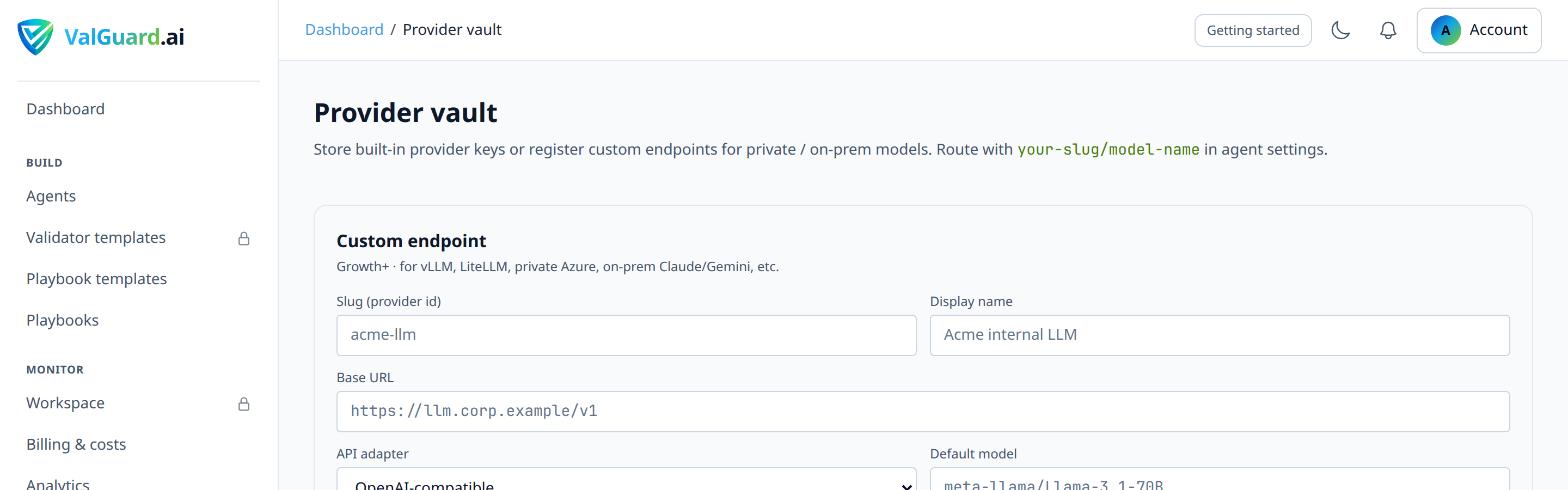
Go to Dashboard → Provider vault (under Configure).
7Step 4: Add a provider key
Click Add provider key, select the provider (e.g., OpenAI), and paste your API key.
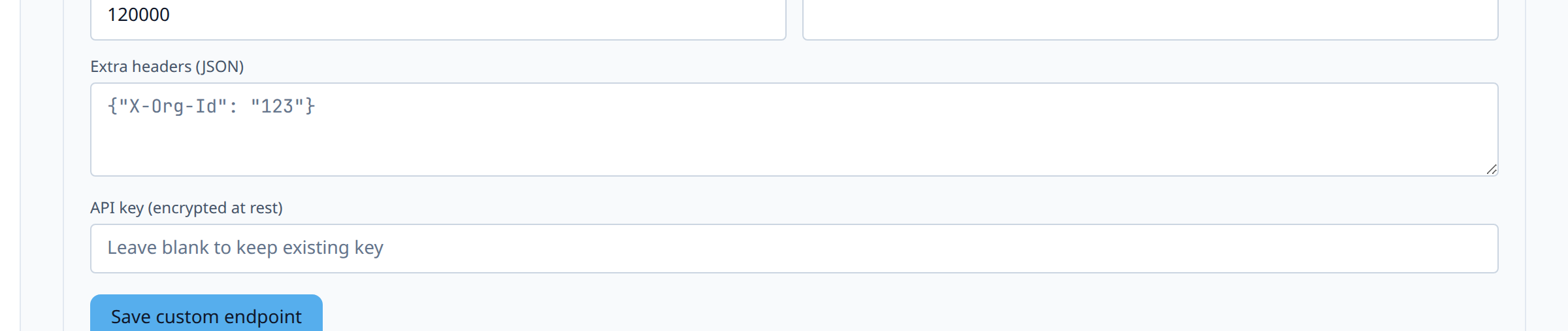
The key is encrypted at rest immediately on save; the dashboard will only ever show a masked version (e.g.,
sk-...a1b2) afterward, never the full value again.8Step 5: Confirm the vaulted key is available to agents
Once saved, any agent configured with a
modelstring referencing that provider (e.g.,openai/gpt-4o-mini) will automatically use the vaulted key. No per-agent key configuration needed unless you want to override it.
9Step 6: (Optional) Set up a custom endpoint
If you're pointing at a self-hosted or enterprise model deployment, go to Provider vault → Custom endpoints (Growth+) and add the base URL and auth details.
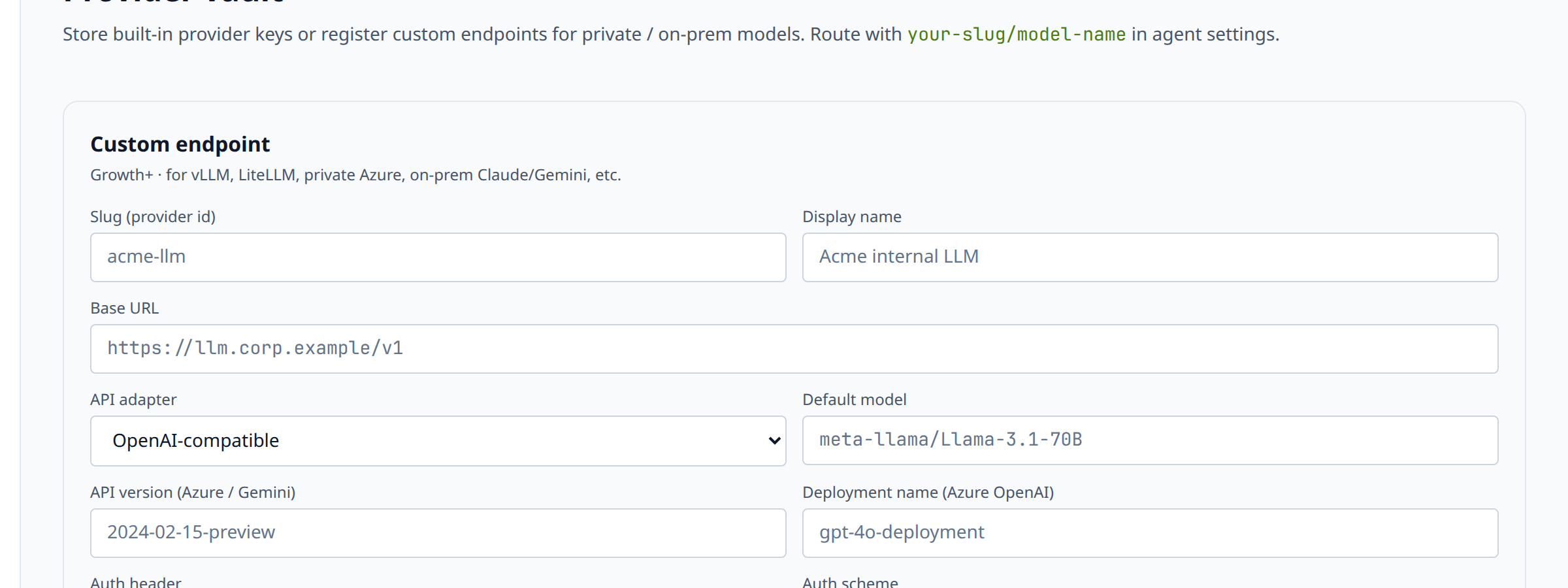
Reference it in your agent's
modelfield using your chosen slug:{ "model": "acme-internal/llama-3-70b-finetuned" }10Step 7: Call an agent without ever passing a provider key
curl -si "$VG_PROXY/v1/chat/completions" \
  -H "Authorization: Bearer $VG_API_KEY" \
  -H "X-VG-Agent: default" \
  -H "Content-Type: application/json" \
  -d '{"model":"openai/gpt-4o-mini","messages":[{"role":"user","content":"..."}]}'
Notice there's no
X-Provider-Keyheader at all. The engine resolves the key from the vault automatically based on theopenai/prefix in the model string.11Step 8: Confirm which resolution path actually ran
The engine records a
key_source(byokorvault) on every persisted request internally, but this isn't currently surfaced as a column or field in the Dashboard → Request logs UI. The practical way to confirm resolution is behavioral: if you remove theX-Provider-Keyheader entirely and the call still succeeds, the vault resolved the key; if it fails with an authentication or missing-key error, no vault entry is covering that provider for this agent.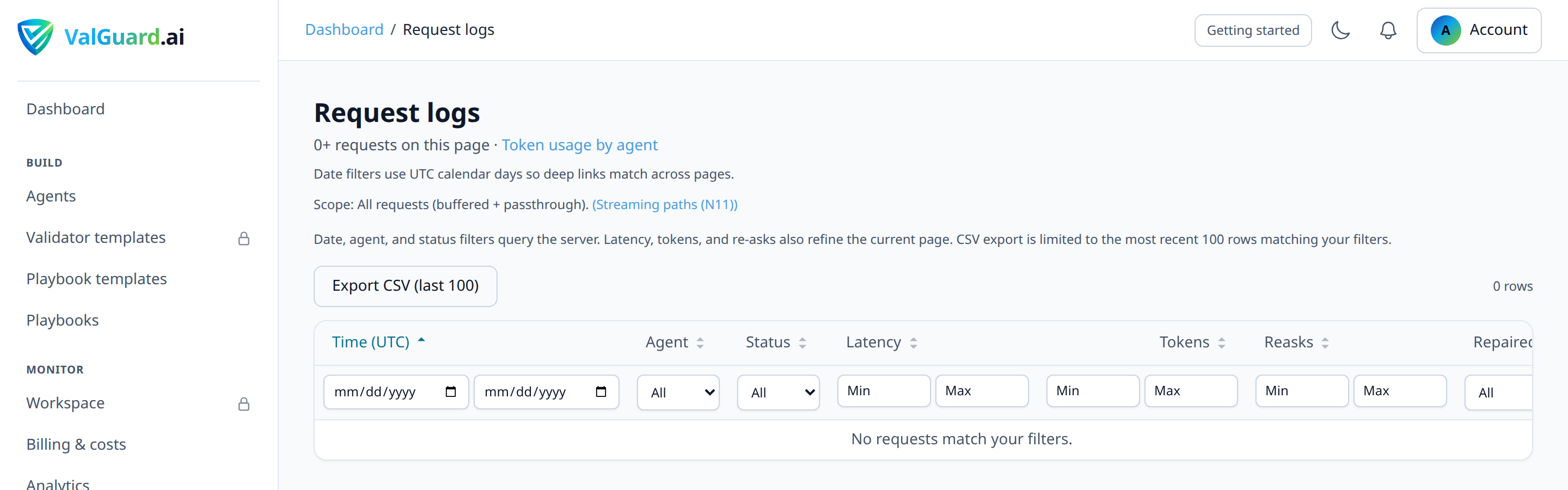
12Step 9: Plan and execute a key rotation
When it's time to rotate (scheduled rotation, suspected exposure, or provider-side requirement), add the new key to the vault first under a fresh entry, confirm it resolves correctly with a test request, then remove the old key, rather than deleting the old key before confirming the new one works, which risks an outage window.

13Step 10: Remove the old key once confirmed
After confirming production traffic is resolving against the new key successfully, delete the old vault entry.
14Diagram / Flow
15Configuration Examples
Per-request BYOK header:
X-Provider-Key: sk-your-openai-key-hereModel string routing to a vaulted built-in provider:
{ "model": "anthropic/claude-3-5-sonnet" }Model string routing to a custom endpoint:
{ "model": "acme-internal/llama-3-70b-finetuned" }Custom endpoint registration (
POST /api/org/custom-providerspayload, as sent by the dashboard form):{ "slug": "acme-internal", "display_name": "Acme internal LLM", "base_url": "https://models.internal.acme.example/v1", "adapter_type": "openai_compat", "default_model": "llama-3-70b-finetuned", "auth_header": "Authorization", "auth_scheme": "Bearer", "extra_headers": {}, "timeout_ms": 120000, "api_key": "your-internal-gateway-key" }adapter_typealso supports Azure OpenAI and Gemini-style deployments. Useapi_versionanddeployment_namefor Azure, since those providers need more than a base URL and bearer token to route a request correctly.16Testing and Verification
- Vault resolution test. Send a request with no
X-Provider-Keyheader to an agent using a model string for a provider you've vaulted, and confirm it succeeds. This proves the vault, not an accidentally-still-present per-request key, is what resolved the credential. - BYOK override test. Send the same request but with an
X-Provider-Keyheader using a deliberately invalid value for the same provider, and confirm the request now fails. Since a presentX-Provider-Keytakes precedence over the vault, this proves override precedence works as documented. If the vaulted key had "won" instead, the request would still have succeeded. - Rotation dry run. Before rotating a production key for real, test the new key with a throwaway request (a low-stakes agent or the playground) to confirm it's valid and has the right permissions/scopes before making it the vault's active key for a production agent.
- Vault resolution test. Send a request with no
17Troubleshooting
"Requests are failing with an authentication error even though I added a key to the vault." Double check the model string's provider prefix matches exactly what the vault entry is registered under (
openai/...needs an OpenAI vault entry, not an entry mistakenly created under a custom endpoint slug), and confirm the key itself hasn't been revoked or rate-limited on the provider's own dashboard."A per-request
X-Provider-Keyisn't taking effect. It's still using the vaulted key." Confirm the header name is exactlyX-Provider-Key(case-sensitive header names can trip up some HTTP client libraries) and that it's present on the actual outbound request, not just set in a client configuration object that isn't being applied to this particular call."I rotated a key and now some requests are failing." This usually means the old key was removed before all in-flight or cached references to it were cleared. Vault key resolution may be cached briefly for performance. If you rotate and immediately remove the old key, allow a short buffer window, or explicitly test the new key's resolution before deleting the old entry, as recommended in Step 9.
"Custom endpoint requests are timing out." Confirm your self-hosted or enterprise endpoint is reachable from ValGuard infrastructure. If it's behind a private network or VPN, it needs to be reachable from wherever the engine runs, which may require additional network configuration (allow-listing ValGuard's egress IPs, or exposing the endpoint through a gateway) beyond what the dashboard configuration alone handles.
"I can't tell which agents depend on a specific vault entry before deleting it." The vault list doesn't currently show a per-entry "used by" count. Resolution is by provider prefix, so any agent whose
modelstring starts with that provider's slug (e.g., anyopenai/...agent) depends on it. Check your agents' model strings directly, or grep your own configuration/IaC if you manage agents that way, before removing a vault entry that might still be load-bearing.18Best Practices
- Default to the vault for any agent your own organization operates long-term. Per-request BYOK is the right tool for genuine multi-tenant pass-through, not for your own steady-state production traffic. Passing your own key on every request from your own backend adds no security benefit and more operational surface area than storing it once.
- Never hardcode a provider key in your application code, whether you're using vault or BYOK. For BYOK, pull it from your own secrets manager at request time, the same discipline you'd apply to any other credential.
- Rotate on a schedule, not just reactively. Treat provider keys the same as any other production credential. A calendar reminder for periodic rotation catches drift before a provider-side policy forces an urgent, unplanned rotation.
- Check which agents reference a provider slug before deleting its vault entry. Since the dashboard doesn't show a "used by" count per entry, a quick review of your agents'
modelstrings avoids an entirely avoidable outage. - Keep custom endpoint auth details as tightly scoped as your provider allows. If your internal model gateway supports scoped tokens rather than a single all-access credential, use the scoped version for the ValGuard integration specifically.
19Advanced Options
Per-agent key overrides within a shared vault. If most agents should use your organization's default OpenAI vault entry, but one specific agent needs to bill against a different account (for example, a client-specific cost allocation), some setups support per-agent vault key overrides rather than a single global resolution per provider. Check your plan's agent settings for this option if you have this requirement.
Multi-provider redundancy. For agents where provider availability matters more than cost (avoiding an outage if one provider has a bad day), you can vault keys for multiple providers and use playbook-level fallback routing (see the fallback logic tutorial) to retry on an alternate provider. This is a resilience pattern, not just a cost-routing one.
Auditing vault access. Enterprise-tier organizations should review who has permission to view or modify the provider vault as part of regular access reviews. A vault entry is only as secure as the set of dashboard users who can read or rotate it, and that access list tends to grow silently over time unless it's periodically audited.
20Summary and Next Steps
Provider vault turns "where does the LLM API key live" from an application-level concern into a centrally managed, rotatable piece of infrastructure. Set it up once per provider, and every agent referencing that provider draws from it automatically, with per-request BYOK remaining available for genuine pass-through, multi-tenant scenarios. The discipline that matters most is around rotation: add the new key, confirm it resolves, then remove the old one, never the reverse.
From here, if you're running agents across multiple providers for resilience or cost reasons, pairing this with the fallback logic tutorial lets you build playbooks that can route to a different vaulted provider entirely if your primary one has an outage, not just a different model on the same provider.